
People and access codes
Where: Settings > Users
Access: system master, or a partition master within their allowed scope
Before you begin: all partitions must be disarmed and not in alarm.
Add a person
Section titled “Add a person”- Open Settings > Users and enter your master code.
- Select Add a user.
- Enter the new person’s code twice.
- On their user page, select Name and enter a recognizable name.
- Open What this code can do and choose the appropriate authority.
- Return to the list and verify the name and authority.
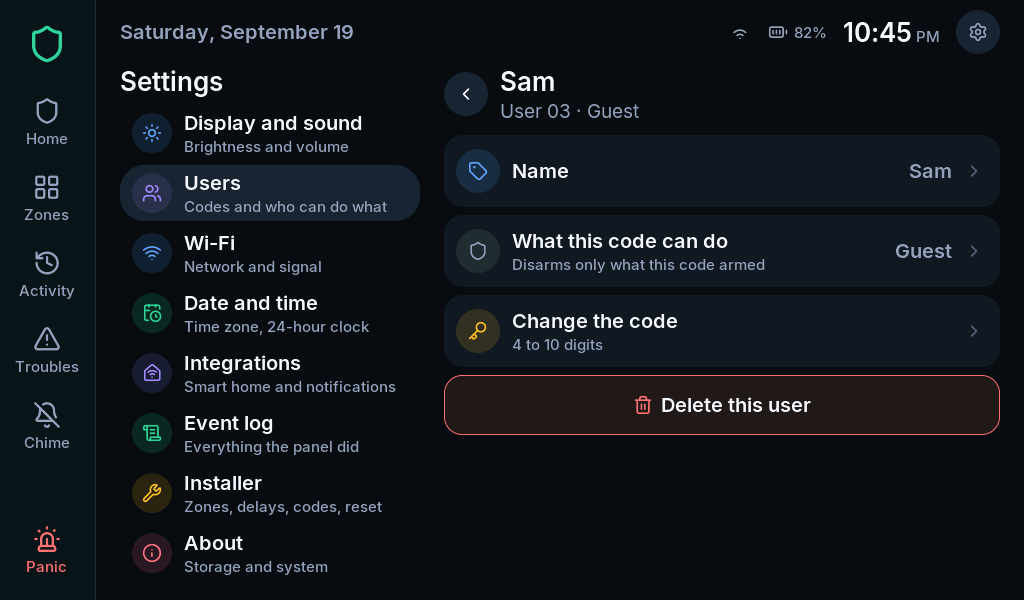
Codes must be unique and contain 4–10 digits, subject to the installer’s minimum length.
Choose an authority
Section titled “Choose an authority”| Authority | Intended use |
|---|---|
| Standard | Everyday arming, disarming, bypass and chime |
| Arm only | Someone who may secure the premises but must not disarm |
| Guest | Someone who may disarm only an armed period they started |
| Partition master | Managing users within assigned partitions |
| Duress | A special code that performs normal operation and also creates a silent duress report |
Only a system master can assign partition-master authority through this page. Duress needs a deliberate reporting arrangement with the installer; creating the code alone does not establish monitoring or emergency response.
Change or remove a code
Section titled “Change or remove a code”Open the person’s page and select Change the code, then enter the new code twice. Existing codes are never displayed.
Select Delete this user to remove a person, review the confirmation, and select Delete. Their code stops working immediately. The UI protects the installer, system master and currently signed-in user from deletion.
Factory-code reminder
Section titled “Factory-code reminder”The Factory codes · Tap to change banner provides a code-change flow. Follow the prompts for the current code and the new code twice. The installer can also reset installer and master codes in installer mode.
The installer code does not manage ordinary household users. See access and permissions if a section will not open.