
Alarms, troubles and activity
An alarm reports an alarm condition. A trouble reports a fault that needs attention. The two are not interchangeable.
When an alarm appears
Section titled “When an alarm appears”Read the alarm type and named zone. If there may be a real emergency, follow your household emergency plan and contact the appropriate emergency service. Operating the screen does not itself guarantee that anyone has been notified.
For a known false burglary alarm, enter an authorized disarm code and select the check mark. Check the resulting state and review the named zone. Do not assume that silencing the panel also canceled a report already delivered to another service.
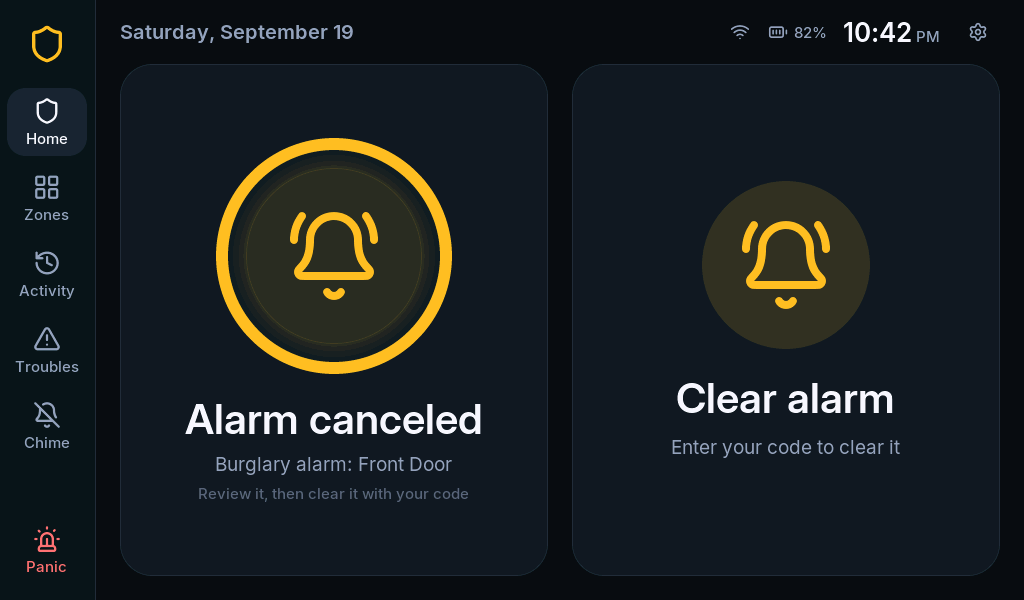
After reviewing the cause, use Clear alarm when offered, enter an authorized code and submit with the check mark. Clearing the memory does not make an active sensor fault disappear.
Read and acknowledge a trouble
Section titled “Read and acknowledge a trouble”- Open Troubles on the left rail.
- Read the fault and its explanation.
- Correct the underlying problem, or contact the installer.
- Use the offered acknowledgment control and enter a code if asked.
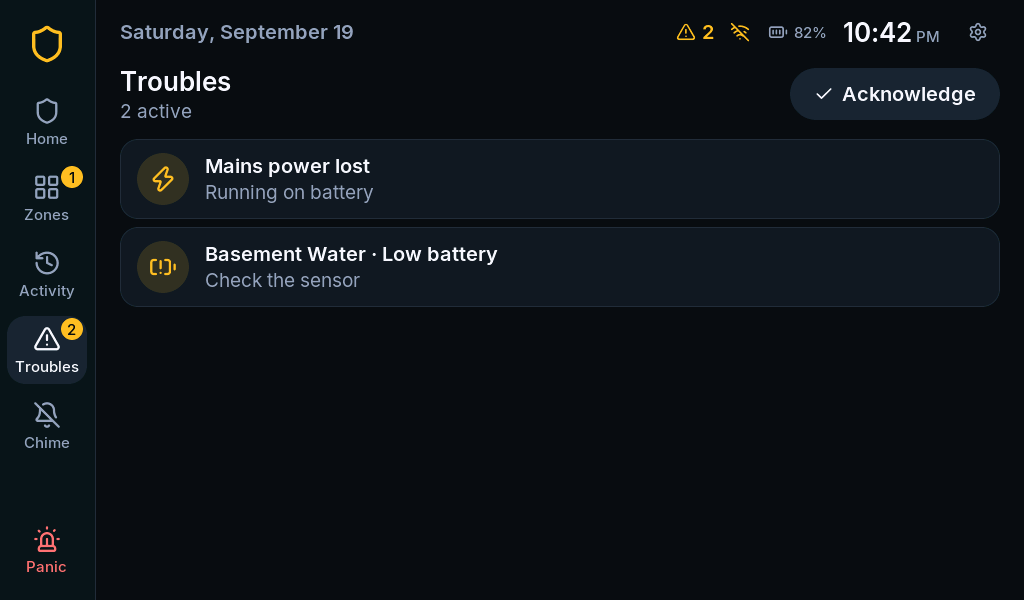
Acknowledging a trouble does not repair it. A continuing fault can remain listed or return. Use the troubleshooting table for network, sensor, storage and code problems.
Review what happened
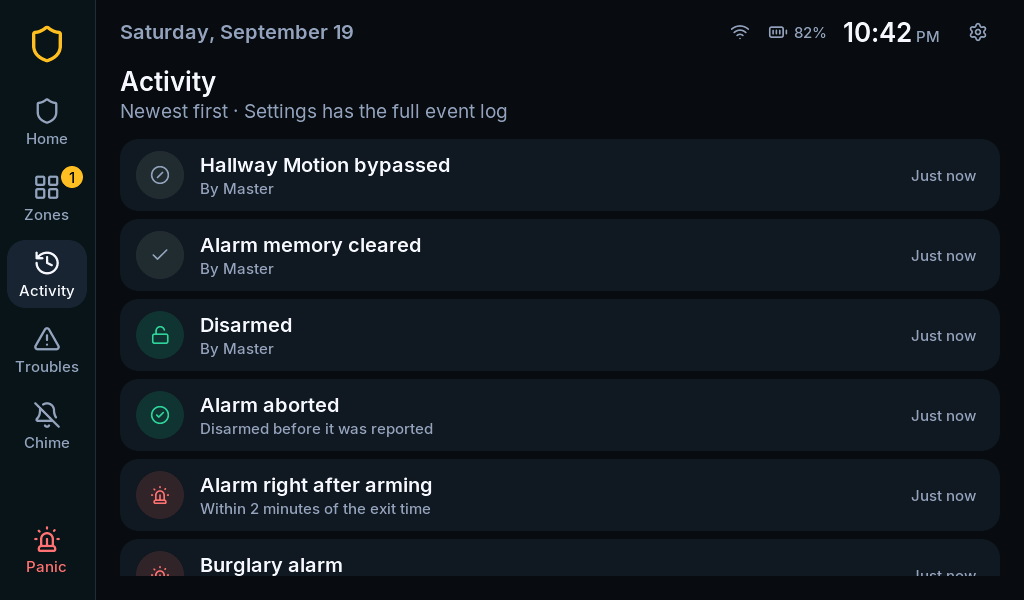
Section titled “Review what happened”Activity shows recent everyday events. Settings > Event log provides the fuller history and requires a master or installer code. Silent events are excluded from the public Activity view.
Emergency controls
Section titled “Emergency controls”The Panic rail item opens the Emergency page. Available actions depend on configuration. The interface uses a deliberate hold to activate an emergency action; a brief touch does not complete it.
Do not activate emergency controls just to explore the page. Arrange any test with the installer and everyone who might receive an alert. This guide does not claim automatic police, fire or medical dispatch.