
Set up phone notifications
Where: Settings > Integrations, in the notifications group
Access: system master or installer code.
Notifications depend on the network, the selected service and phone settings. A saved configuration is not proof of delivery: finish with a test received on the intended phone.
- Install/open the ntfy client on the intended phone.
- On the panel, open Settings > Integrations > ntfy.
- Select the server: the hosted service or your own server.
- Choose a private, difficult-to-guess topic; New topic generates one.
- Set an Access token if your server requires it.
- Subscribe the phone to the same server and topic.
- Enable Send notifications and choose the event categories.
- Select Send a test notification and verify the phone receives it.
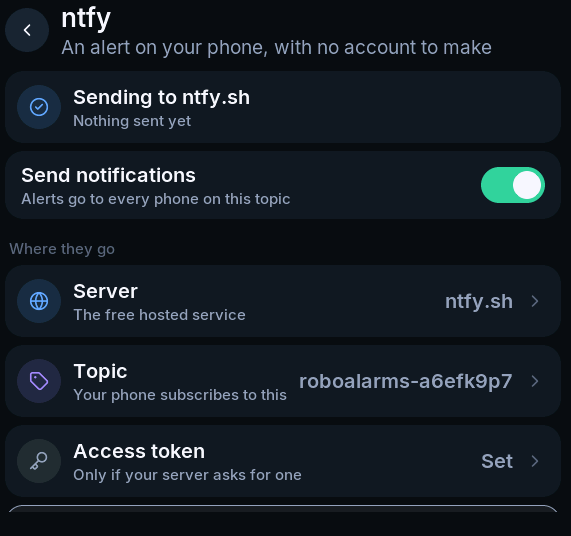
Treat the topic and any access token as private. The Show the QR code action reveals subscription details; use it only when ready to add the intended phone. Do not put that QR code in shared screenshots.
For hosted-service accounts, authentication and access rules, consult ntfy’s documentation.
Pushover
Section titled “Pushover”- Set up Pushover on the receiving phone.
- Obtain the account’s user/group key and create an application token in Pushover.
- Open Settings > Integrations > Pushover.
- Enter the two credentials into their respective fields.
- Enable sending and review event categories.
- Review whether alarms should use repeating emergency notifications.
- Send a test and confirm delivery.
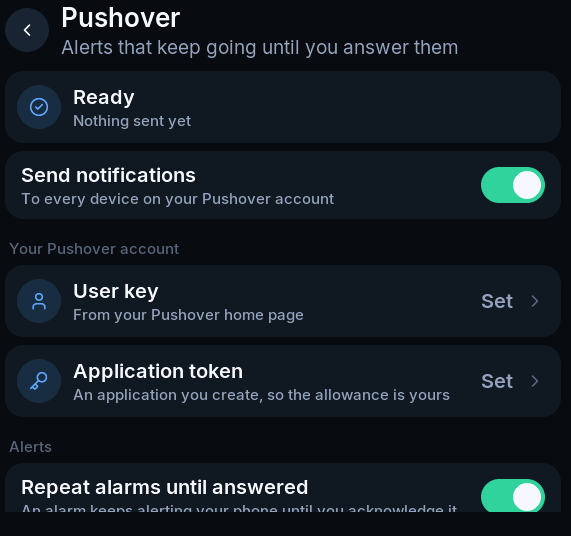
The panel ships without a shared Pushover application token. Use the credentials created for this installation. See Pushover for account and application setup.
Choose what to send
Section titled “Choose what to send”Review alarm, trouble and other available event categories with the owner. Silent alarms require explicit opt-in; a phone sound or visible notification can reveal an event intended to remain silent at the panel.
If you disable alarm notifications, the page warns about the consequence. Enable only the channels and categories you have tested.
When a test does not arrive
Section titled “When a test does not arrive”Check panel network status, the service status shown on the page, destination credentials, phone subscription and phone notification permissions. Repeat the test after correcting the cause. A successful local button press does not establish end-to-end delivery.