
Troubleshooting
Start with the exact message and the named zone or service. Avoid factory reset as a general troubleshooting step.
Home and keypad
Section titled “Home and keypad”| What you see | What it means / next action |
|---|---|
| Not ready | Open Zones, identify the active input and restore it. Review any intentional bypass |
| Armed Stay after choosing Away | Auto-stay may have detected that no entry/exit door was used |
| Settings will not open | Disarm all partitions and resolve a sounding alarm first |
| Code refused | Check authority and partition access. Guest and installer codes have disarm restrictions |
| Keypad locked | Stop guessing and wait for the displayed lockout to end; contact the master if the code is unknown |
| Cannot arm in Installer | Select Leave installer mode and retry |
| Chime is silent | Check global chime, disarmed state and the individual zone’s Chime option |
| Normal volume is low but alarms are loud | Alarm/fire/CO sounds use full volume separately from the everyday volume setting |
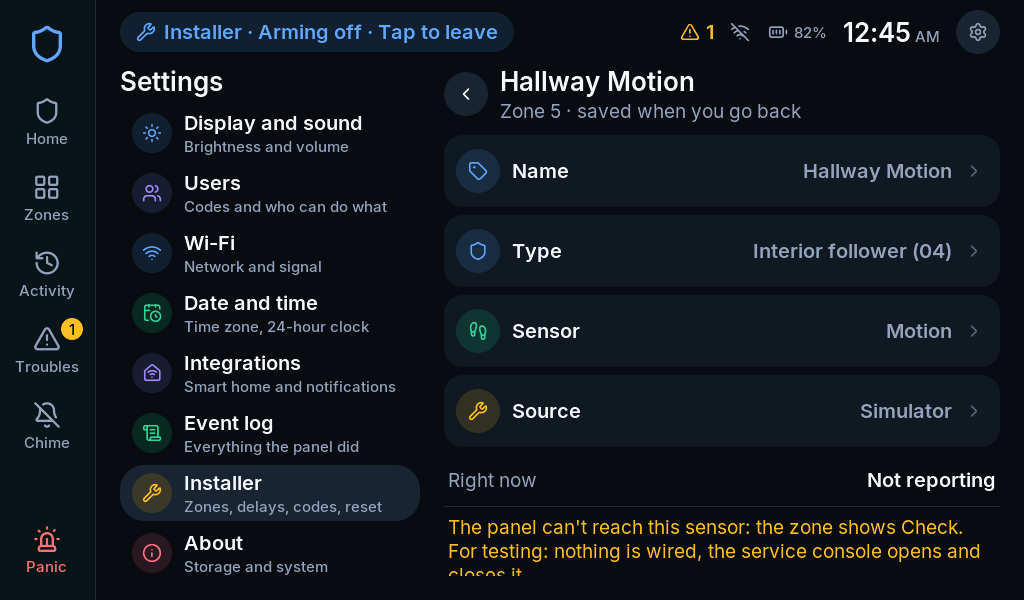
A zone shows CHECK or Unreachable
Section titled “A zone shows CHECK or Unreachable”The panel does not have a trustworthy current state for that input. It is not the same as a closed door.
- Identify the zone and its source.
- Check that the source service is connected.
- For Home Assistant, confirm the entity is available and still in the share list.
- Restore the connection and operate the input to verify a fresh state.
- Ask the installer if the problem persists.
Home Assistant
Section titled “Home Assistant”| Symptom | Next step |
|---|---|
| No discovered panel | Add RoboAlarms manually using its address; check enablement and TCP 6054 |
| No RoboAlarms in integration search | Verify HACS/manual installation and restart Home Assistant |
| Pairing expired | Reopen pairing on the panel and continue within two minutes |
| Codes differ | Reject the pairing; verify devices and the network before retrying |
| A shared entity is absent | Check integration options, entity availability and pairing state |
| Certificate changed | Verify the device; use reauthentication after an expected identity change |
| Wrong device during reconfigure | Do not accept it; check that the address belongs to the same panel |
| Protocol incompatible | Use compatible panel and integration versions |
The complete flow is in Connect Home Assistant.
Network and notifications
Section titled “Network and notifications”Use the panel’s connection check to separate Wi-Fi, addressing, router and service failures.
For missing phone alerts, check the selected event categories, service status, destination and phone permissions. Send an explicit test. A panel event appearing in Activity does not prove a phone received it.
For browser network changes, reconnect and confirm Keep the new settings within the trial period. Otherwise the previous network settings return.
Updates and storage
Section titled “Updates and storage”| Symptom | Next step |
|---|---|
| Update waits | Disarm every partition and ensure the system is silent |
| Update rolled back | Record both versions and the message; contact the maintainer before retrying repeatedly |
| Storage problem | Treat configuration persistence as unresolved; record the message and contact the installer |
| SD card not found | Check the storage status; do not format as a first response |
| Need a lost master code | Ask the installer to set a replacement; factory reset is unnecessary |
Information to collect
Section titled “Information to collect”Record the software version, exact message, affected zone/service, the action just taken and whether it repeats. Screenshots should exclude codes, notification QR codes, tokens and private network details.