
Get to know your panel
RoboAlarms brings the alarm state, your zones and household settings together on one touchscreen. Start here if someone has already configured the system for you.
Read the Home screen
Section titled “Read the Home screen”The large status card tells you whether the system is Disarmed, counting down or armed. Ready to arm means the required zones are ready for the selected arming mode. Not ready means a zone needs attention.
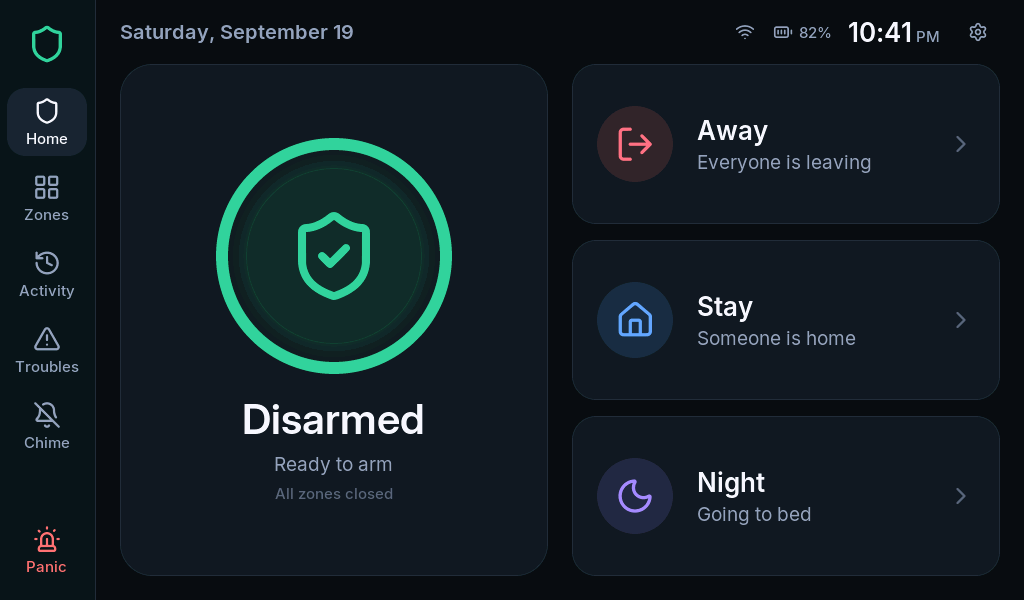
The left rail gives you quick access to:
| Control | What you use it for |
|---|---|
| Home | Arm, disarm and see the current state |
| Zones | Find an open sensor or review bypasses |
| Activity | Read recent everyday events |
| Troubles | Understand a fault and acknowledge it |
| Chime | Turn door-opening sounds on or off |
| Panic | Open the Emergency page |
The gear at the top opens Settings. Settings are unavailable while any partition is armed or in alarm. A code is requested when you enter a protected section.
Learn these three tasks first
Section titled “Learn these three tasks first”- Arm and disarm with your own code.
- Find an open zone before leaving.
- Read an alert without confusing an alarm with a system fault.
Ask the installer which doors have an entry delay and which sensors are active in Night. These choices depend on your installation.
Enter a code
Section titled “Enter a code”Type the digits, then select the check mark to submit. Code lengths can differ, so typing the last digit alone does not submit. Use the delete key to correct a mistake.
Repeated incorrect codes can temporarily lock the keypad. If you do not know your code, ask the person who manages household users rather than guessing.
Wake the screen
Section titled “Wake the screen”Tap the screen saver to return to the panel. It shows the time and alarm state while the screen is dimmed. You can change its timing and brightness in Display and sound.