
Use Home Assistant sensors
Pairing lets Home Assistant see the panel. Sharing permits the opposite direction: selected Home Assistant sensors can supply states to panel zones.
Before you begin: finish pairing, confirm the connection, and verify the source entity already changes correctly in Home Assistant.
1. Choose what to share
Section titled “1. Choose what to share”- In Home Assistant, open Settings > Devices & services.
- Open RoboAlarms Panel, then select Configure (the gear beside the panel’s name).
- Find What the panel may see and do.
- Under Entities the panel may use as zones, select the intended entities.
- Select Submit to save the options.
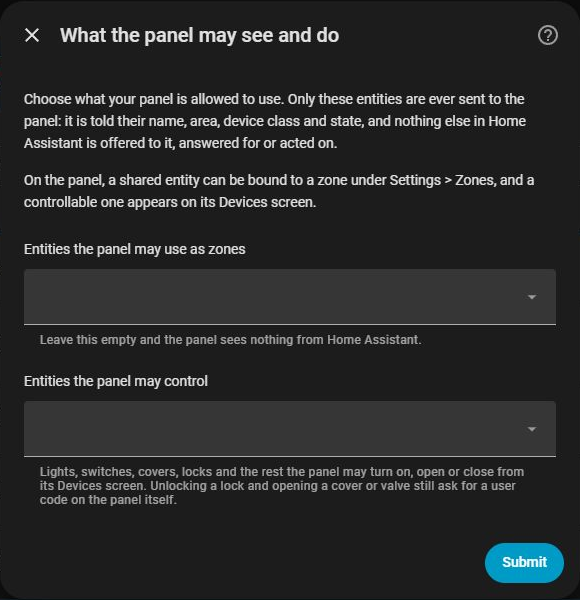
An empty selection shares nothing. Do not share RoboAlarms’ own exported entities back to the same panel.
The separate Entities the panel may control permission is for device control. The panel’s Devices screen is not complete in this edition; choosing that permission does not create a finished touchscreen control workflow.
2. Assign the sensor to a zone
Section titled “2. Assign the sensor to a zone”- On the panel, open Settings > Installer > Zones.
- Add or open the intended zone.
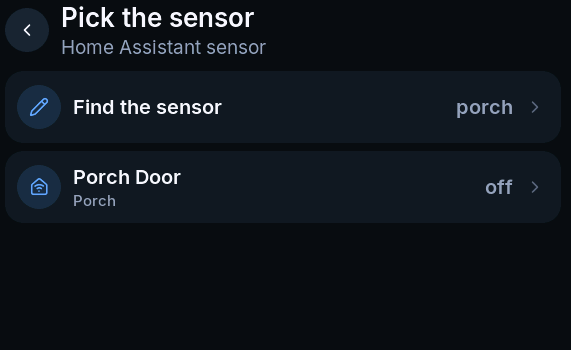
- Open Source, then choose Home Assistant.
- Search by name, room or entity ID.
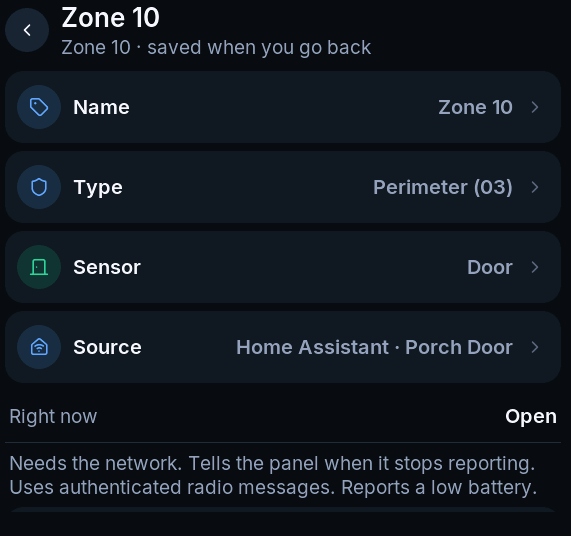
- Select the intended entity and review the resulting source.
- Return to save and inspect Right now.
3. Verify the behavior
Section titled “3. Verify the behavior”Operate the source sensor and confirm the correct zone becomes active and returns to normal. A value displayed as unavailable in Home Assistant should not be treated as a closed door.
Home Assistant and its network are now part of this zone’s availability. A connection loss can raise a source or zone trouble after its grace period. Verify the recovery path during commissioning.
Sensor suitability
Section titled “Sensor suitability”Use an input with an unambiguous normal/active state. These network sources are not automatically trusted for fire, CO or panic. The installer override for life-safety use is not a completed feature in this edition.
If the sensor is missing from the picker, first check the share list, connection status and entity availability. Reinstalling the integration is usually unnecessary.