
Software updates and storage
Check or install an update
Section titled “Check or install an update”Where: Settings > About > Software update
Access for changes: master or installer code
- Open Settings > About and note the installed version.
- Open Software update and select Check for updates.
- Read the offered release information.
- Select the install action when you are ready.
- Keep the panel powered and follow the displayed progress.
- After restart, check the version and normal system status.
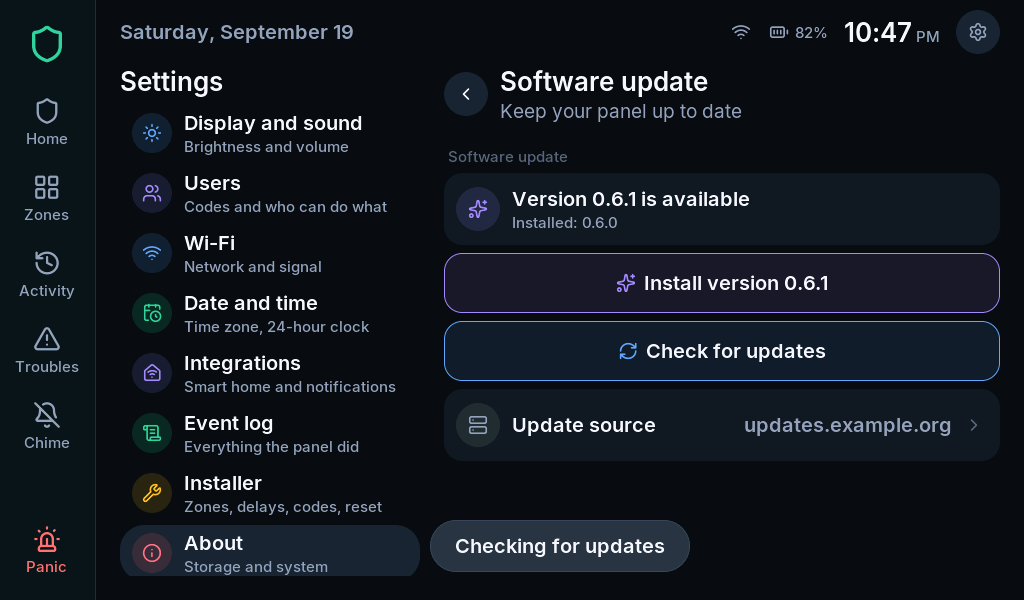
Installation waits until the system is disarmed and silent. Updates must match the panel’s supported signed firmware. If startup checks fail, the panel can roll back to the previous image. A rollback means the attempted update did not become the running version.
Use the Update source supplied for your installation. Do not replace it with an arbitrary firmware link to clear an error.
View storage
Section titled “View storage”Open Settings > About > Storage. You can inspect SD-card status and internal flash usage.
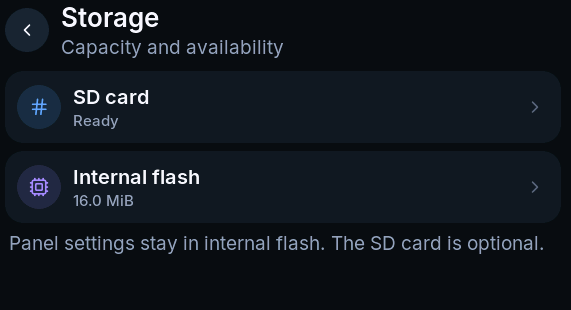
For an inserted SD card, the page provides checking and safe-removal controls. Select Safely remove and wait for confirmation before physically removing it.
Formatting erases the card. Only format when you intend to remove its contents, and read the confirmation. Formatting is not a remedy for every storage problem.
When to ask for help
Section titled “When to ask for help”Contact the installer if an update repeatedly rolls back, the update source is unknown, or Storage problem continues. Record the visible version and exact message. A successful setting change on screen is not proof it was saved if the panel reports a storage fault.