
First setup
A panel without a completed setup opens the welcome wizard. Work through it in order.
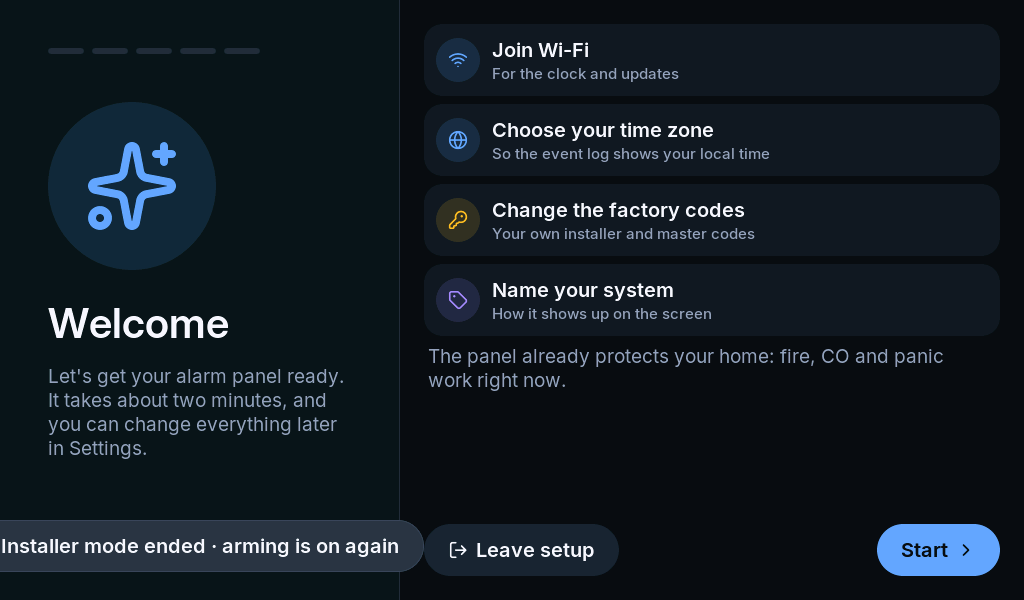
1. Join Wi-Fi
Section titled “1. Join Wi-Fi”Select Start, choose the intended Wi-Fi network and enter its password. Select Next after connection. Skip for now lets you continue without networking, but connected services still need setup later.
2. Choose the time zone
Section titled “2. Choose the time zone”Select the installation’s time zone, then Next. Verify local time once synchronization completes.
3. Replace both factory codes
Section titled “3. Replace both factory codes”The factory installer code is 69420 and the factory master code is 123456. These are public defaults, not private installation credentials.
Select Change beside each code and enter a unique new code twice. Keep the installer and master codes distinct and hand the master code to the person responsible for the household.
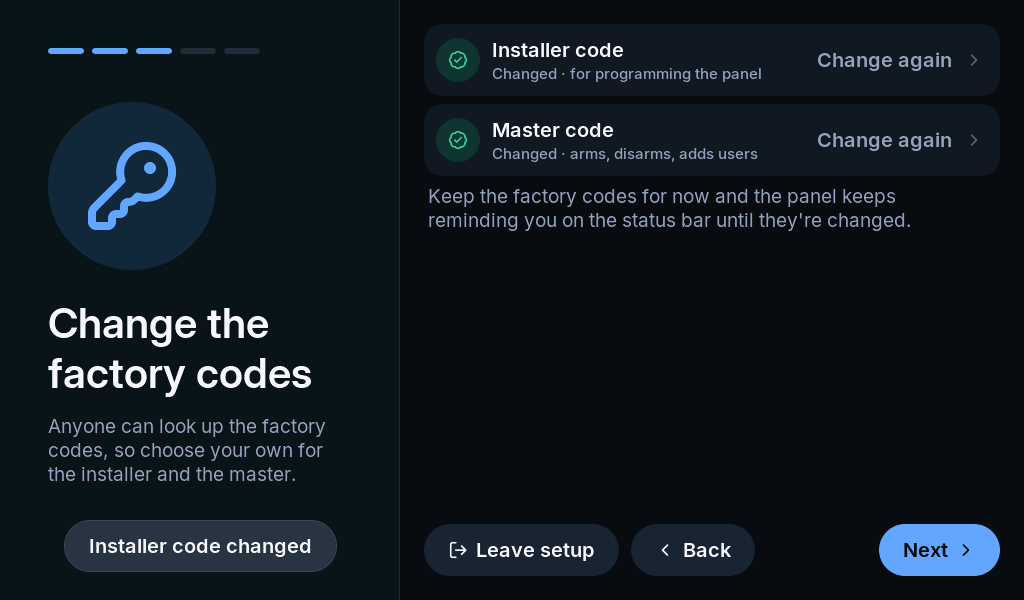
Codes can contain 4–10 digits, subject to the configured minimum. If you keep a factory code, the reminder remains on the status bar.
4. Name the system
Section titled “4. Name the system”Choose a short, recognizable name such as Home or Workshop. The name appears in the panel experience and event history.
5. Review and finish
Section titled “5. Review and finish”Check the summary for Wi-Fi, time zone, codes and name. Select Go to Home. Next, configure and verify zones; the wizard does not prove sensor coverage.
Run the wizard again
Section titled “Run the wizard again”While disarmed, enter Settings > Installer and select Run the setup again. On a configured panel, Leave setup returns to Home. Changes made as you move through the wizard remain saved; leaving it is not an undo operation.